AR Drawing: Sketch & Paint
- 4.1
- Rating
- 10.00M
- Installs
- Free
- Price
 Analysis by App-foxy
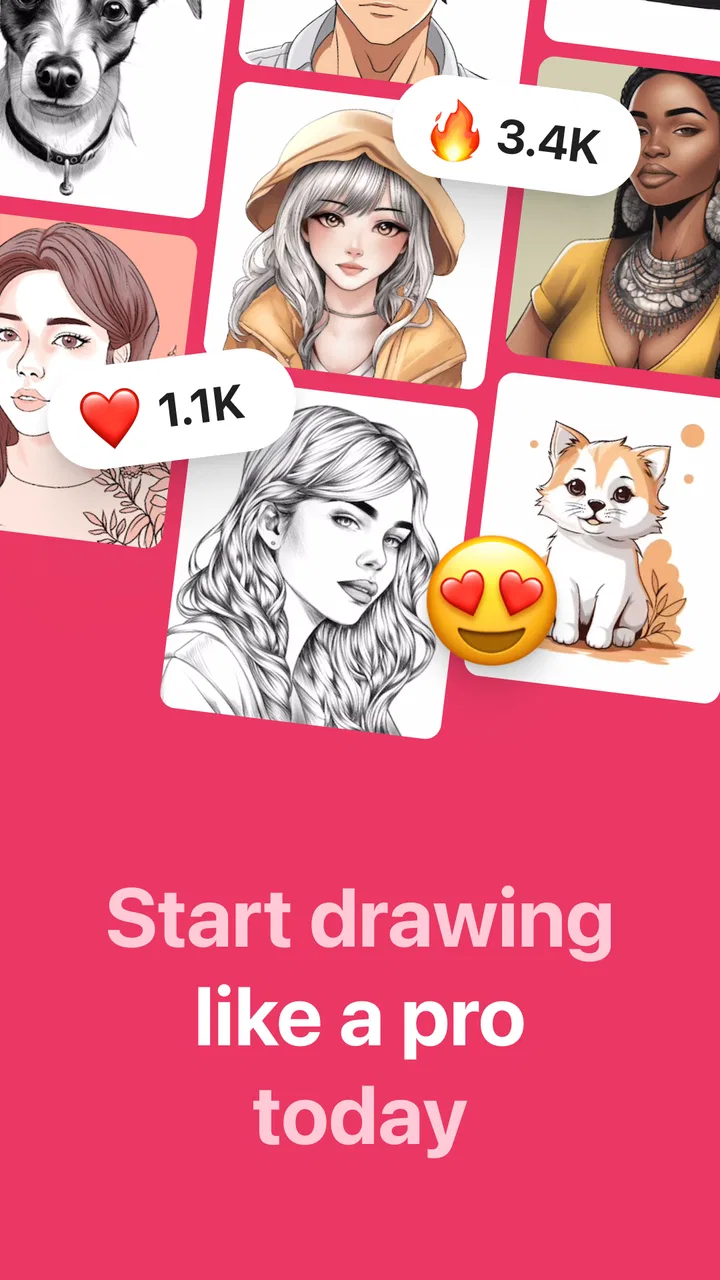
I found AR Drawing: Sketch & Paint most interesting when I stopped treating it like a normal drawing app. Instead of asking me to create every shape freehand on a blank screen, it turns my phone into a visual guide for paper. I choose an image, position the phone so the picture appears over the page, and follow the visible lines with a pencil. That simple change makes the app feel less like digital illustration software and more like a bridge between a screen and a physical sketchbook.
That distinction matters. I would not recommend it to someone looking for a full digital art studio with layers, brushes, and detailed editing controls. I would recommend it to a beginner who feels intimidated by drawing, a parent looking for a hands-on activity, or anyone who wants to transfer a reference image onto paper without relying on tracing paper. In my experience, the strongest part of the app is the confidence it gives you at the start of a drawing. The weaker part is that the result still depends heavily on a steady setup, good lighting, and patience.
How the drawing experience works in everyday use
The basic workflow is easy to understand: select a picture, place a sheet of paper beneath the phone, and use the projected-looking image as a guide while drawing. The phone is not physically projecting ink onto the page; the reference is viewed through the camera, which creates the augmented-reality effect. That means I still need to draw the lines myself, but I do not have to estimate every proportion from scratch.
You May Also Like

 Blood Strike: 2.5 Anniversary
Blood Strike’s Loadouts Turn Every Drop Into a Tactical Gamble
A close look at Blood Strike’s custom loadouts: how fast access to signature weapons reshapes its battle royale rhythm, rewards preparation, and narrows the gap between fights.

 Pandora - Music & Podcasts
Pandora’s Music Is Easy to Start, but Harder to Recover
Pandora’s strength is its low-effort path from a seed to a station. Its weak spot is how much confidence it asks you to place in connection, setup, and quiet recovery.

 8 Ball Pool
 Is Built on Rivalries, Rematches, and Routine
A close look at the rivalries, rematches, shared routines, and unanswered safety questions that turn a quick pool match into a persistent mobile community.

 Samsung Music
’s Quiet Strength Is Playing What You Already Own
Its reach comes less from spectacle than from dependable access to a personal library. That simplicity is both the app’s strongest retention engine and its ceiling.

 AccuWeather: Weather Radar
AccuWeather Review: A Quick, Clear Forecast for Everyday Decisions
For everyday plans, the best forecast is the one you can understand quickly. AccuWeather makes rain timing, radar, and local conditions easy to act on, with a few trade-offs.

 Hill Climb Racing
Why Hill Climb Racing Still Turns Crashes Into One More Run
A tiny car, a bumpy hill and one more upgrade: Hill Climb Racing keeps resurfacing because its simple chaos makes every near-miss feel personal.
More From Our News Desk
View All News


For a first attempt, I would use a simple image with a clear outline rather than a busy photograph. A cartoon animal, a leaf, or a basic object gives the guidance system a useful starting point and leaves enough room for my hand to work. Detailed pictures can be tempting, but they quickly become difficult because the paper, pencil, and phone all compete for attention.
A realistic everyday use case is a quiet afternoon activity at a kitchen table. I can place a sheet of paper beside a lamp, prop the phone so the reference stays in view, and work through the outline in short sessions. A child can concentrate on coloring afterward, while an adult can help adjust the phone instead of having to draw the entire picture. The app is especially useful in that setting because the physical result remains tangible; the finished page can be displayed, colored, or given away.
The free price makes experimenting straightforward, although the app includes optional in-app purchases ranging from around five dollars to around sixty-five dollars per item. I would begin with the free experience before paying for anything. The core idea is easy to test quickly, and whether it suits you depends more on your workspace and drawing habits than on the promise of the concept.
Readability and navigation for first-time users
The interface is built around a visual task rather than a large collection of professional tools. That helps keep the initial learning curve low. I do not need to understand digital brush settings before starting, and the purpose of the main workflow becomes apparent quickly: choose an image, arrange the view, then trace and color.
For someone with limited experience using art apps, that simplicity is valuable. Traditional drawing applications often place many controls around the canvas, and a new user can spend more time learning the interface than making marks. Here, the important question is not which brush engine to choose but whether the reference image is positioned correctly. That makes the app approachable for casual use.
Readability still depends on the physical situation. A phone screen can be easy to inspect indoors and much harder to see near a bright window. Reflections can wash out faint lines, while a dark room may make the paper difficult to judge. I get better results when the phone brightness is comfortable, the page is uncluttered, and the reference image has strong contrast.
One useful habit is to decide the paper size before beginning. If I start with a small sheet and later want a larger drawing, I have to reposition everything and may lose the alignment that made the outline useful. I also prefer to tape or lightly secure the paper so it does not shift when my hand reaches across it. The app can show the guide, but it cannot correct a page that moves halfway through the drawing.
The developer is listed as AR Drawing, and the app sits in the art and design category. Its broad audience is reflected in an Everyone content rating, but that should not be confused with effortless operation for every person. A clean visual workflow is helpful, yet the user still has to manage a phone, a page, and a drawing tool at the same time.
Motor control, vision, and sensory comfort
The app can reduce one particular motor demand: judging proportions from a separate reference image. Instead of repeatedly looking from a printed picture to the paper, I can keep the guide in the same general view as the drawing surface. That may make copying feel more manageable for beginners or for people who find spatial estimation tiring.
At the same time, the setup introduces another motor challenge. The phone must remain stable while the hand moves over the page. If the device is held in one hand, the image can wobble whenever the grip changes. A stand or another stable support is therefore more than a convenience; it can make the difference between a usable guide and a frustrating one. I would avoid balancing the phone on loose objects, because a small shift changes the apparent position of every line.
People with limited fine-motor control may appreciate working in short sections rather than attempting a complete outline in one pass. I find it easier to trace a few connected shapes, pause, check the alignment, and continue. A thicker pencil or marker can also be easier to hold than a very thin drawing tool, although the choice of tool belongs to the physical drawing process rather than the app itself.
For users with low vision, the experience will depend on how clearly the chosen image appears and how close the phone can be positioned without getting in the way. High-contrast reference art is more practical than a pale, detailed picture. Increasing screen brightness may help, but it can also create glare or visual fatigue. I would test the setup with a small section before committing to a long session.
For users sensitive to motion or visual overlays, the camera-based view may feel less comfortable than a fixed printed reference. The apparent image can shift when the phone moves, and that movement may be distracting. In that situation, a conventional drawing tutorial, a printed outline, or a standard coloring app may be a better choice. The augmented-reality approach is the app’s defining strength, but it is not automatically the most comfortable format for every viewer.
Using it in different places and with different routines
Situational access is one of the app’s most practical questions. It is designed around a phone, a physical surface, and enough room to draw. At home, that combination is easy to arrange. In a classroom, workshop, or waiting area, it may be less convenient because the user needs a stable place for the device and paper. The app is portable in the sense that it runs on a phone, but the activity itself is not completely hands-free or pocket-sized.
I would use it in a library or community setting only after checking the lighting and table space. The screen must remain visible while the pencil reaches across the page, so a cramped desk can make the workflow awkward. A smaller drawing area may solve that problem, but it also limits the amount of detail that can be added comfortably.
The app requires Android 8.0 or later, and the current version is 5.0.0. That makes the operating-system requirement relevant for anyone using an older phone or a shared family device. On a compatible phone, the more important practical issue is not just whether the app installs, but whether the camera view and screen are comfortable to use for several minutes at a time.
Because the activity combines screen viewing with paper drawing, it can fit people who want less time spent on a fully digital canvas. I like that the final work exists outside the phone. It is easier to pin a completed page to a wall or add it to a notebook than to turn a digital file into a physical keepsake. This also makes the app suitable for family activities where the process matters more than producing polished artwork.
However, someone who wants to draw while traveling on a bus, in a car, or while standing should probably skip it. Movement makes the overlay harder to keep aligned, and the physical page needs support. For travel, a normal sketchbook with a printed reference is likely more dependable. The app is best when the user can control the environment rather than constantly adapting to it.
Where the experience still creates barriers
The biggest barrier is the dependence on alignment. If the phone shifts, the guide shifts with it. That can make a line that looked correct a moment ago appear to move away from the pencil. I learned to treat the phone position as part of the drawing tool: once the view is comfortable, I avoid touching the device unless I am intentionally resetting the composition.
Another limitation is the gap between tracing and understanding. The guide helps me reproduce visible contours, but it does not automatically teach perspective, shading, anatomy, or composition. A beginner may produce a recognizable outline without learning why the image works. I see the app as a confidence-building aid, not a replacement for art instruction.
Coloring also remains a physical task. The app can guide the drawing phase, but the quality of the final page depends on the pencils, pens, paper, and technique I use afterward. Someone expecting the phone to finish the artwork digitally may be disappointed. The appeal is precisely that the user completes the work on paper, yet that also means uneven coloring, smudges, and paper limitations remain part of the result.
Screen size can become a barrier when the reference contains many small shapes. A phone is convenient, but it is not a large drafting table. I get more value from simplifying the image mentally and tracing the major forms first. Trying to reproduce every tiny detail directly from a small display can lead to eye strain and a cluttered page.
There is also a financial judgment to make. The app is free to download and use as a starting point, while optional purchases are available at several price levels. I would not pay simply because I wanted more confidence with drawing; the free workflow is enough to decide whether the camera-guided method suits me. A purchase makes more sense only after regular use has shown that the format genuinely fits my routine.
Who will benefit most, and who should choose another tool
I think this app is a strong match for people who enjoy hands-on crafts but feel blocked by blank paper. It can also work well for parents, teachers, and casual hobbyists who want a structured activity without turning it into a formal lesson. The guide gives users a visible starting point, which can be especially encouraging when the fear of “getting it wrong” is the main reason they avoid drawing.
It is less suitable for experienced digital artists who need layers, precise editing, export-focused workflows, or a broad brush library. A conventional illustration app will be better for building a reusable digital image. A printed reference will be better for users who need a completely stable guide. A drawing course will be better for someone whose main goal is to understand technique rather than copy an outline.
Compared with tracing paper, the app is more flexible because the reference can be viewed without printing it first, and the image can be adjusted through the phone-based setup. Compared with a standard coloring app, it offers a more physical and tactile result. Compared with freehand sketching, it lowers the initial demand for proportion and placement. None of those advantages removes the need for practice, but each one changes where the effort goes.
For a child, I would supervise the setup rather than handing over the phone and expecting an independent experience immediately. The child can focus on tracing and coloring, while an adult keeps the device stable and helps choose an image with clear shapes. For an adult with limited hand strength, shorter sessions and a stable phone support may make the experience more manageable than holding the device throughout.
My inclusive verdict after using the workflow
The app’s accessibility story is practical rather than comprehensive: it can make drawing more approachable by reducing the need to estimate shapes, but it still asks the user to coordinate a screen, a page, and a drawing tool. That makes the surrounding setup just as important as the software. Good lighting, a stable phone position, an uncluttered image, and breaks for the eyes can significantly improve the experience.
Its popularity suggests that the idea has broad appeal: it holds an average rating of around 4.4 from roughly 717 thousand ratings, and it has passed 10 million installs. Those figures do not guarantee that every user will find the overlay comfortable, but they do reflect a concept that is easy to understand and attractive to a wide range of casual creators.
I would recommend trying it if you want a gentle entry into drawing on paper and are willing to arrange a stable workspace. I would skip it if you need a fixed reference, dislike camera-based overlays, or want advanced digital editing. The best way to judge it is to start with a simple, high-contrast image and a small sheet, then see whether the physical workflow feels natural.
My final view is positive, with a clear boundary: AR Drawing: Sketch & Paint is a helpful drawing guide, not a complete art classroom or professional studio. It succeeds when the goal is to turn hesitation into a first outline and a blank page into something personal. For beginners and family activities, that is a meaningful strength. For users who need precision, deep instruction, or effortless operation in changing environments, another kind of art tool will serve them better.
FAQs for AR Drawing: Sketch & Paint
01What is AR Drawing: Sketch & Paint and how does it work?
AR Drawing: Sketch & Paint is an innovative app that allows users to create art using augmented reality. By overlaying digital illustrations onto real-world surfaces, it provides a unique drawing experience. Users can sketch or paint directly onto these surfaces using their device’s camera, transforming everyday surroundings into a digital canvas.
02Is AR Drawing: Sketch & Paint suitable for beginners?
Yes, AR Drawing: Sketch & Paint is designed for artists of all skill levels, including beginners. It features intuitive controls and a user-friendly interface that makes it easy to start creating art. The app includes tutorials and guidance to help new users understand its features and improve their skills over time.
03What devices are compatible with AR Drawing: Sketch & Paint?
AR Drawing: Sketch & Paint is available for both Android and iOS devices. However, for optimal performance, it requires devices that support augmented reality features, such as ARCore on Android and ARKit on iOS. Check your device specifications to ensure compatibility before downloading the app.
04Does AR Drawing: Sketch & Paint offer any in-app purchases?
Yes, while AR Drawing: Sketch & Paint is free to download, it offers in-app purchases. These may include additional tools, brushes, or premium features that enhance the drawing experience. Users can choose to purchase these items to unlock more advanced options and further customize their artwork.
05How can I share my artwork created in AR Drawing: Sketch & Paint?
The app provides several options for sharing your creations. Once you've completed your artwork, you can save it directly to your device or share it on social media platforms like Instagram, Facebook, and Twitter. It also allows you to send your artwork through email or messaging apps, making it easy to showcase your work.
Pros
- Easy to use interface for beginners.
- Wide range of drawing tools available.
- Supports layers for detailed artwork.
- Includes tutorials for skill improvement.
- Offline mode available for sketching.
Cons
- Limited export formats for artwork.
- Ads can be intrusive during use.
- Some features require in-app purchases.
- Occasional lag on older devices.
- No collaboration feature for team projects.

AR Drawing: Sketch & Paint
Gallery